Access Advanced System Settings quickly from Start Menu or create a shortcut for easy access in your Windows 7 PC.
Most of the times we configure our Windows 7 performance settings from Advanced System Settings dialogue window through right-clicking Computer icon from your desktop or from the Start Menu and choose Properties, and on the Computer properties window, on the left pane of the window we are going to click Advanced System Settings
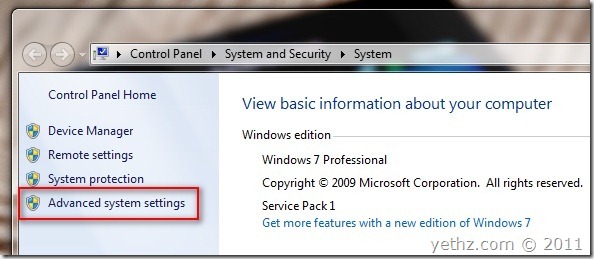
after clicking that link, Advance System Settings window will pop-up, from their you can go through Advanced tab and clicking Settings button.

Would it be easier or should I say, faster, to access that configuration window if we can create a shortcut to it or accessing it from the start menu?
2 ways that you can access it easier without going through the steps mentioned above.
Method 1
Click Start Menu button and on the search box type “system” without quotes, from the search results, look for View advanced system settings, click that and your already in Advanced Tab in System Properties. That easy and quick.
You can also make a shortcut of it, by pressing Shift key on your keyboard and right-click View advanced system settings from the result, on the menu that appears click Open file location
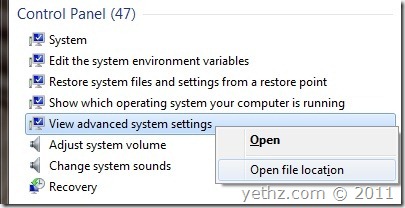
on the explorer window, again right-click View advanced system settings and click create shortcut

a shortcut has been created onto your desktop, you can move it anywhere you want it for easy access.
Method 2
Another way is to type it in the run dialogue box from your start menu.
Open up your start menu and click Run or press Windows Key+R on your keyboard for a shortcut key, now on the run dialogue box type and press enter;
(that is control space sysdm.cpl double comma and 3)
control sysdm.cpl,,3
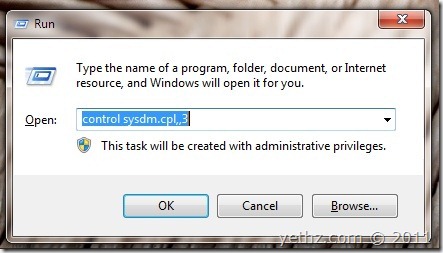
That’s it. Easier access to Advanced System Settings tab in Windows 7. Hope this helps you.
Do you have other ways to share? We would like to hear it from you, please drop a comment below.

