Windows 7 Tips

Windows 7 Navigation Pane Customizer

Windows 7 Navigation Pane Customizer is a freeware application from door2windows that allows you to show, hide and rename items in the Windows 7 Explorer Navigation Pane.
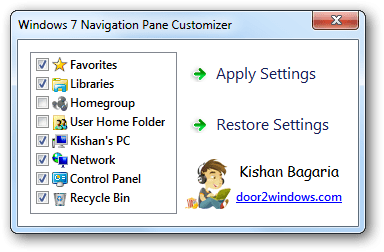
Windows 7 Navigation Pane Customizer

How to use:

  1. Run the Tool as Administrator
  2. Check the items that you want to show and uncheck the items that you want to hide.
  3. Click on the item that you want to rename and type the new name for it.
    Rename Navigation Pane
  4. Click Apply Settings.
  5. Now the Windows Explorer will restart and the changes will be applied. If you want to restore the default settings, click Restore Settings.

    Download Windows 7 Navigation Pane Customizer [via door2windows]
Your friendly IT Technician and your go-to source for all things tech-related. With a passion for technology, I’m here to simplify your digital world and help you unlock its full potential.

Related Posts

How to Clear Your Browsers Cache and History

Clearing your browser cache and history can help improve your browsing experience, remove clutter, and enhance privacy. Here’s how to do it in some of the most popular…

Right-Click BT Tray

Set Phone as Modem in Windows 7 using Bluetooth

If you’re using Windows 7 and have a Bluetooth dongle (or any usb bluetooth device) and don’t have a DSL/Broadband connection, this is for you ;) Long time…

How To Access Advanced System Settings Quickly in Windows 7

Access Advanced System Settings quickly from Start Menu or create a shortcut for easy access in your Windows 7 PC.

Windows 7 BootScreen for HD Screen Sizes

If you have a HD Screen Display with Windows 7, you’ll noticed that the boot screen are stretched out, this one fixes it…

How To Remove or Clear Windows Update History Log in Windows 7

Overtime your Windows Update History Log will display long lists of your installed windows update, here is a simple tip to clear windows update history log…

How to Adjust Dim, Turn-Off or Set your PC to Sleep in Windows 7

One way to save energy in your laptop is to dim the display when you are not using it in a specific duration of time.

Leave a Reply

Your email address will not be published. Required fields are marked *

This site uses Akismet to reduce spam. Learn how your comment data is processed.