More Tips and Tricks

Remove Logitech Webcam Icon in My Computer

Recently I installed Logitech USB Webcam in my Windows XP, i noticed that the icon appears in my computer in explorer are a bit ugly and also not even useful for me sitting that icon there.

Logitech QuickCam Icon

So, I decided to dig in to Registry tool in windows and look for the registry keys in it and luckily found it in a few seconds (Obviously, I dig in first in Explorer Branches)
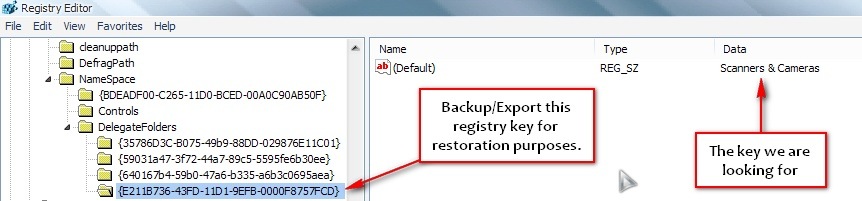
Registy Entry for Logitech Webcam

Just go to this location;

HKEY_LOCAL_MACHINESOFTWAREMicrosoftWindowsCurrentVersionExplorer
MyComputerNamespaceDelegateFolders

and browse each folder branch and look in the right-pane which says Scanners & Cameras, see the above screenshot.

Now that you found the right key, just simply delete the folder.

(please do a backup first of this branch for restoration purposes, also note that I don’t have any Scanners installed)

Delete Registry Entry for Logitech

After deleting the registry key, simply close regedit and open your MyComputer from desktop to see if it’s been removed successfully.

Logitech Quick Cam Icon Removed

Now your done! If it happens that you want to put back that icon in MyComputer, just Merge your Backup registry key to restore it…

How to backup the registry entry?

Well, just right-click the folder where we want to delete then click Export, and name it what you want.

Hope this helps. If you have any questions just leave a comment below and I’ll be glad to answer it. Thank you…

Your friendly IT Technician and your go-to source for all things tech-related. With a passion for technology, I’m here to simplify your digital world and help you unlock its full potential.

Related Posts

Windows Shortcuts That Every PC Users Should Know

Here are some essential Windows shortcuts that can really help boost your productivity:General Shortcuts: Window Management: Virtual Desktops: Browser Shortcuts (works in most browsers): Accessibility: Search and Navigation:…

5 Tips And Tricks On Windows Keyboard Shortcuts

Win + V – Open the clipboard history (if enabled), letting you access multiple copied items.

Windows Tips Enhancing Performance & Security

To ensure smooth performance and robust security, users must adopt best practices. In this article, we’ll explore essential tech tips to optimize Windows and protect your system from security threats.

5 Crucial Tips To Keep Your Windows Experience Smooth and Efficient:

By following these tips, you can enhance the security, performance, and reliability of your Windows system. If you need more specific advice, feel free to ask!

Here Are 5 Tips and Tricks To Enhance Your Windows 11 Experience

Try out these tips and see how they enhance your Windows 11 experience!

Tech Tips for Making Your Smartphone Last Longer

By following these tips, you can keep your smartphone running efficiently and extend its lifespan!

This Post Has 2 Comments

  1. this really helps. my computer drive list takes a minute to load when the my web cam is functioning.. thanks for sharing

Leave a Reply

Your email address will not be published. Required fields are marked *

This site uses Akismet to reduce spam. Learn how your comment data is processed.