Microsoft has already released Windows 8 Release Preview some time ago. It’s got some really good new stuff like the metro UI and ribbon explorer and some more…
but there was one little thing bothering me with it. .Net Framework 3.5 wasn’t installed by default. If you want it, you have to get it from windows update.
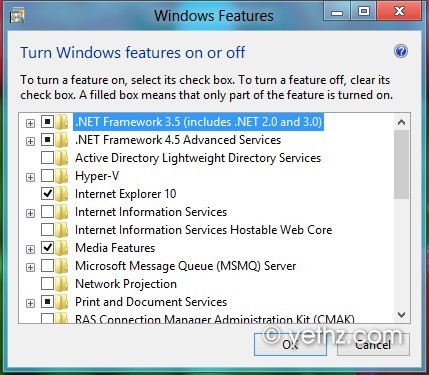
I noticed that when i was checking the new windows features dialog which can be accessed from Control panel>Programs>turn windows features on or off

or if you’re using the metro screen, just typing the letters fea which are the first letters in windows features>settings>turn Windows features on or off as you can see in the screenshot below.
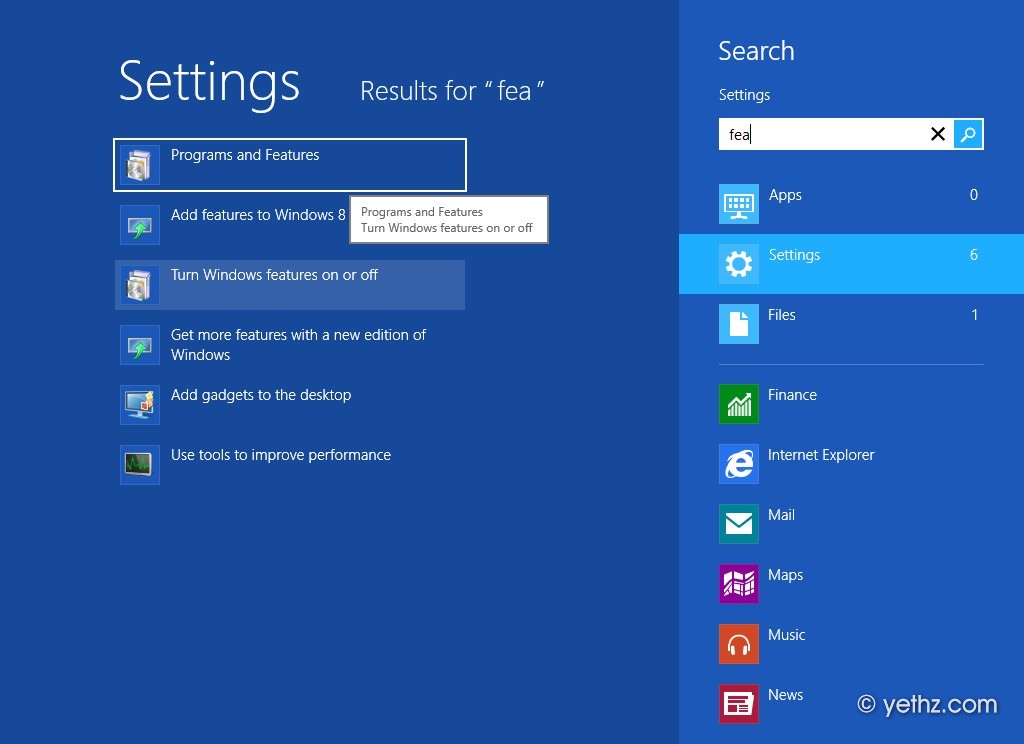
If you tried to use that windows features dialog, it will download it from windows update. If you already have an offline installer, it won’t work. I’ve already tried that which made me look for another method to do so and finally i found one.
All you’ll need to do is to copy some files from the windows DVD and run a command and it’s done.
1 – Insert you DVD ( or mount your ISO file), go to sourcessxs inside the DVD.
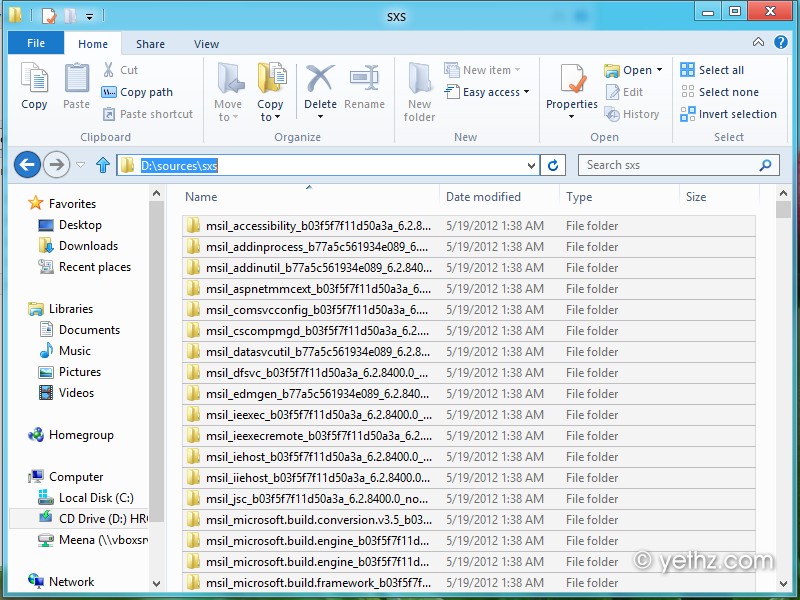
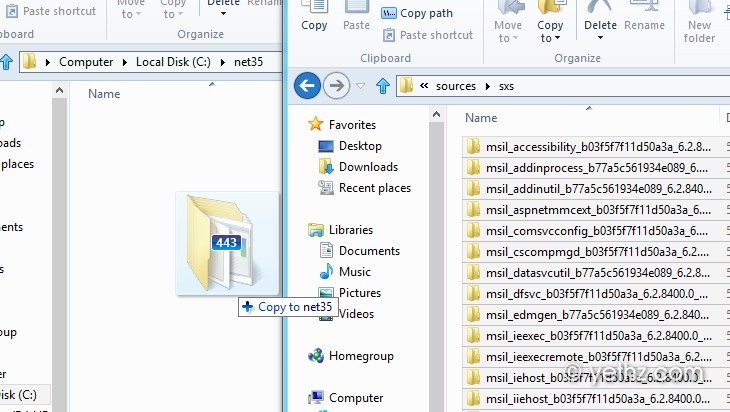
2 – Copy all files inside sourcessxs directory to a new folder called net35 in C: directory.
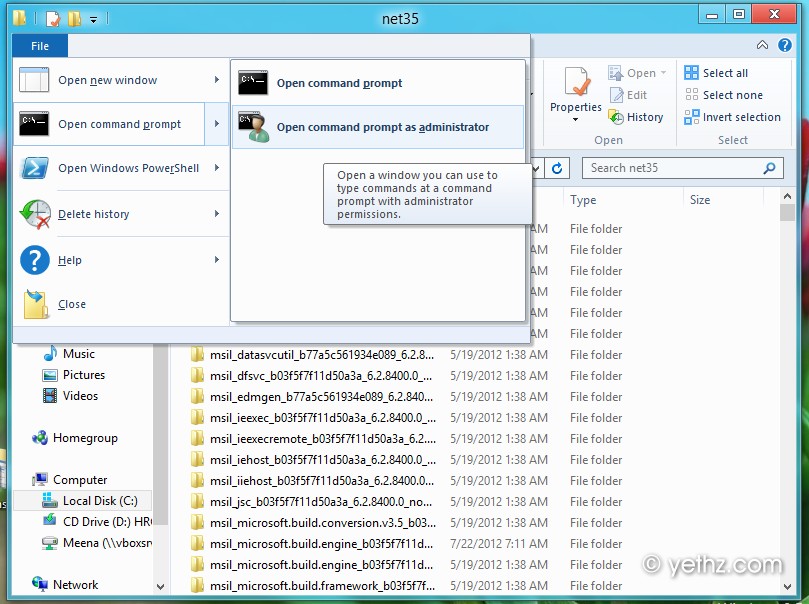
3 – Now you need to run the command prompt as Administrator. One of my favorite tricks in windows 8. From My Computer>C: or any open folder. go to file>open command prompt>open command prompt as administrator.
4 – Now you have Command Prompt running as administrator, copy and paste the following inside the command prompt.
Dism.exe /online /enable-feature /featurename:NetFX3 /All /Source:c:net35 /LimitAccess
hit the Enter key and make sure you get that screen when it’s done
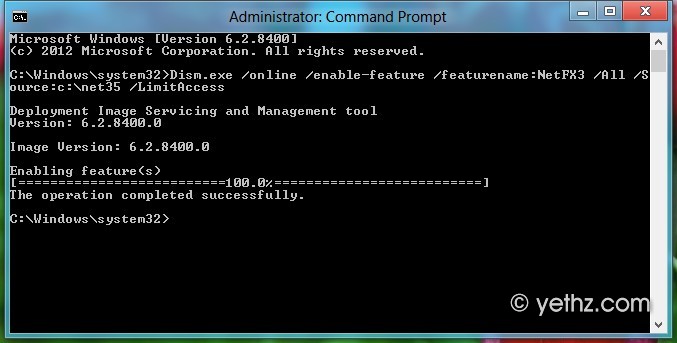
5 – now to make sure everything is working fine, go back to the windows features dialog and .NetFramework 3.5 should be enabled by now
If you enjoyed this trick, please share it :) (Via)


Thanks dear.
We are glad it helps u… Thank u…
We are glad it helps you and others..
Thanks to our friend Meena ;)
There is no sxs folder on my installation DVD image :( Can I find it somewhere online ?
:D there is mate….
Open or Extract your Windows 8 .ISO file..
in extracted iso, there is “sources” and inside this folder there is “sxs” ….
NO >>> THERE ARE INSTALLATIONS ONLINE THAT DO NOT HAVE AN SXS FOLDER …… can anyone upload it somewhere please …
i having a problem
error code: 87
the sources option is not recognized in this context
Many thanks!!!
I still have the same problem http://i.imgur.com/xHcx4.png
thank’s
You are very welcome… Thanks for giving time to drop a message. We really appreciated it. Cheers ;)
Thanks for This. This is work 100%
Hi friend MY PC not working plz you slow to image http://i.imgur.com/xHcx4.png plz help me……………
hi there. sorry for so late reply to your queries.
about the problem u have, It seems that Im having problem on helping you, coz i cannot understand the language u used on ur pc..
i am very sorry.
thanxxx for working 100%
Worked like a charm. Thanx
^_^
thanks dude worked perfectly!!!!!!!!!!!!!!!!
thanks men.
I have tried everything and nothing works. Just upgraded my Family Tree Maker and it won’t install because I can’t enable or install NetFx 3.5. Update feature refuses to work. DISM command doesn’t work. Running Windows CP Build 8250. Any suggestions.